
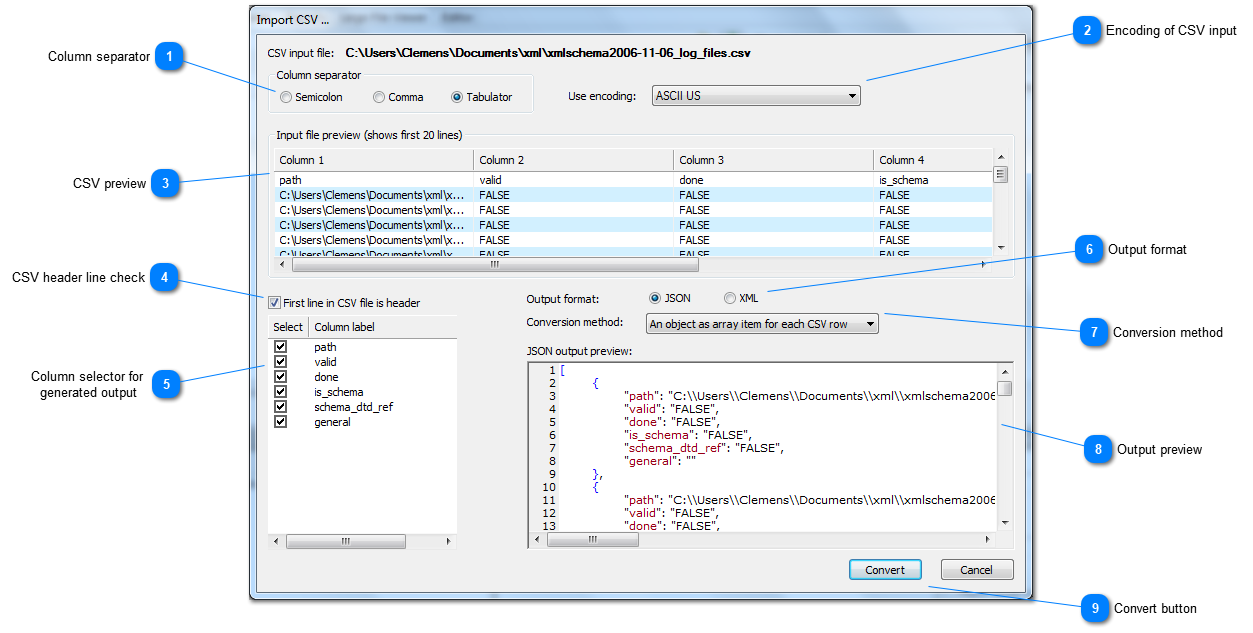
Column separatorThe CSV import supports three different column separators:
|
| Top |
Encoding of CSV input Please select the encoding according to the CSV input. By default a standard ASCII encoding is selected.
 |
| Top |
CSV preview The input preview can be used to check if the CSV can be converted as expected. It will also show, if the first line contains header information to set the column labels.
 |
| Top |
CSV header line check Many CSV files contain a header line to set the column labels. If the current input comes with a header line, set this option to read the column labels from the first line. As a consequence, the import will then start from the second line.
 |
| Top |
Column selector for generated output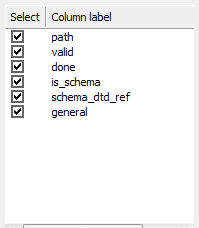 Below the header line option is a list of column labels. Use the check-box in each line to include or exclude the column in the output. In addition the label text can be edited. The output preview will show the changes to the column labels immediately.
 |
| Top |
Output formatThe CSV data can be converted into XML or JSON using this option. |
| Top |
Conversion methodXML ValidatorBuddy supports several methods what JSON or XML structure will be created from the imported CSV data. The following methods are available for the generated JSON:
|
| Top |
Output preview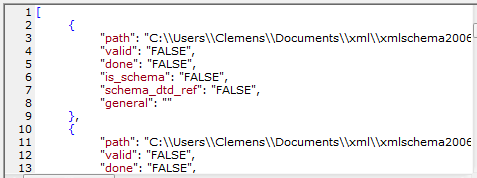 Please note that the Output preview will only show the data from the first 20 lines of the CSV input.
 |
| Top |
Convert button Click the "Convert" button to start the conversion process and to generate the XML or JSON output. A new document with the conversion result will be opened in XML ValidatorBuddy.
 |
| Top |