
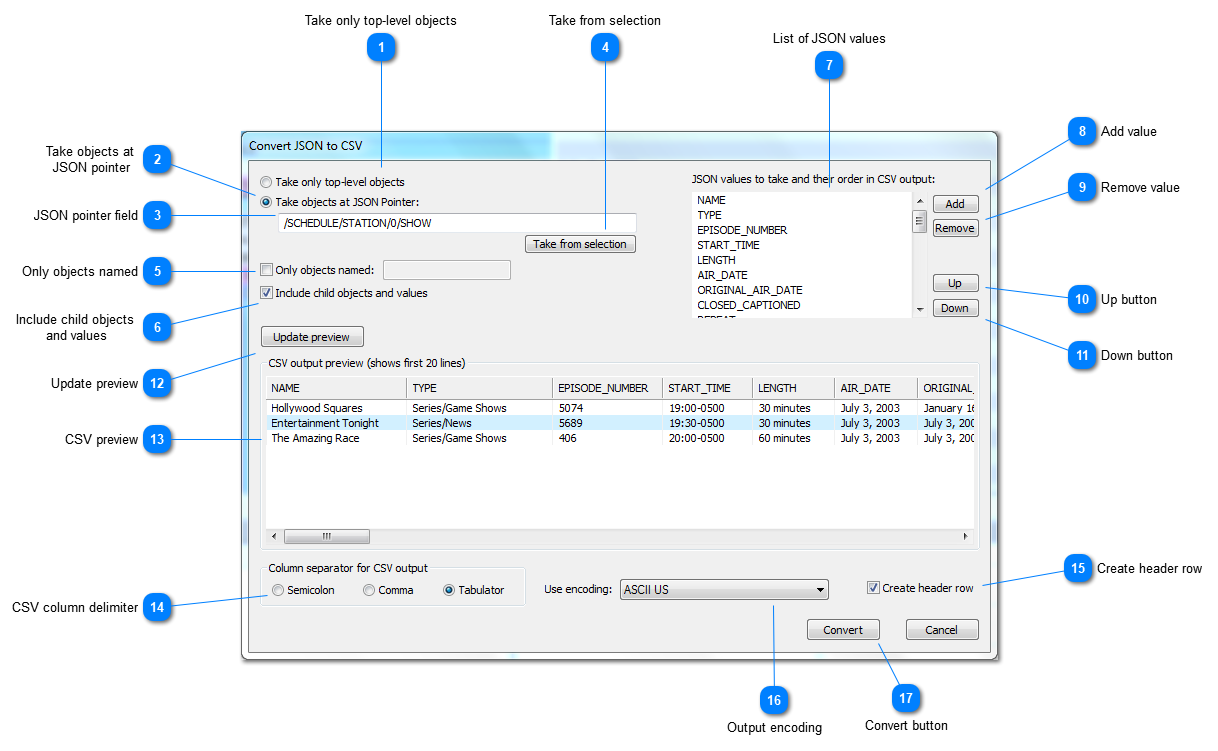
Take only top-level objects Only JSON objects from the root level are taken to generate the CSV output. Can also be used if the top-level value is a JSON array.
|
| Top |
Take objects at JSON pointer If not the complete JSON should be converted to CSV this option can be used to set a JSON pointer to set the location where the conversion process should start.
|
| Top |
JSON pointer field JSON pointer to set the location in the input where the conversion process should start. See also (2)
|
| Top |
Take from selection This button is enabled if the current document is converted to CSV and a valid JSON pointer for the current selection is available. On clicking this button the current JSON pointer is copied to the JSON pointer field
|
| Top |
Only objects named Use this option if only objects with a specific name at the starting level shall be converted to CSV.
|
| Top |
Include child objects and values Select this option to convert the complete JSON with all child objects and values. The column labels are then JSON pointers pointing to the related values relative to the starting level of the JSON input. Please take a look at the List of JSON values and the CSV preview to get a better idea how the JSON is converted to CSV in this case.
|
| Top |
List of JSON values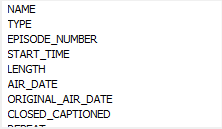 This list contains all of the JSON values which will be converted to CSV. You can add values using the Add and Remove buttons. The column labels are actually JSON pointer fragments relative to the starting level within the JSON input.
 |
| Top |
Add value Use this button to manually add a JSON value (by name) to the CSV output.
|
| Top |
Remove value Button to remove a selected JSON value from the CSV output.
|
| Top |
Up button Moves the JSON value position to the front in the CSV output line.
|
| Top |
Down button Moves the JSON value position to the end in the CSV output line.
|
| Top |
Update preview The CSV output preview is refreshed using the current conversion options.
|
| Top |
CSV preview |
| Top |
CSV column delimiter The CSV export supports three different column separators:
|
| Top |
Create header row Add a header line with column labels to the CSV output.
|
| Top |
Output encoding Please select the encoding that should be used on writing the CSV output. By default a standard ASCII encoding is selected.
|
| Top |
Convert button |
| Top |