
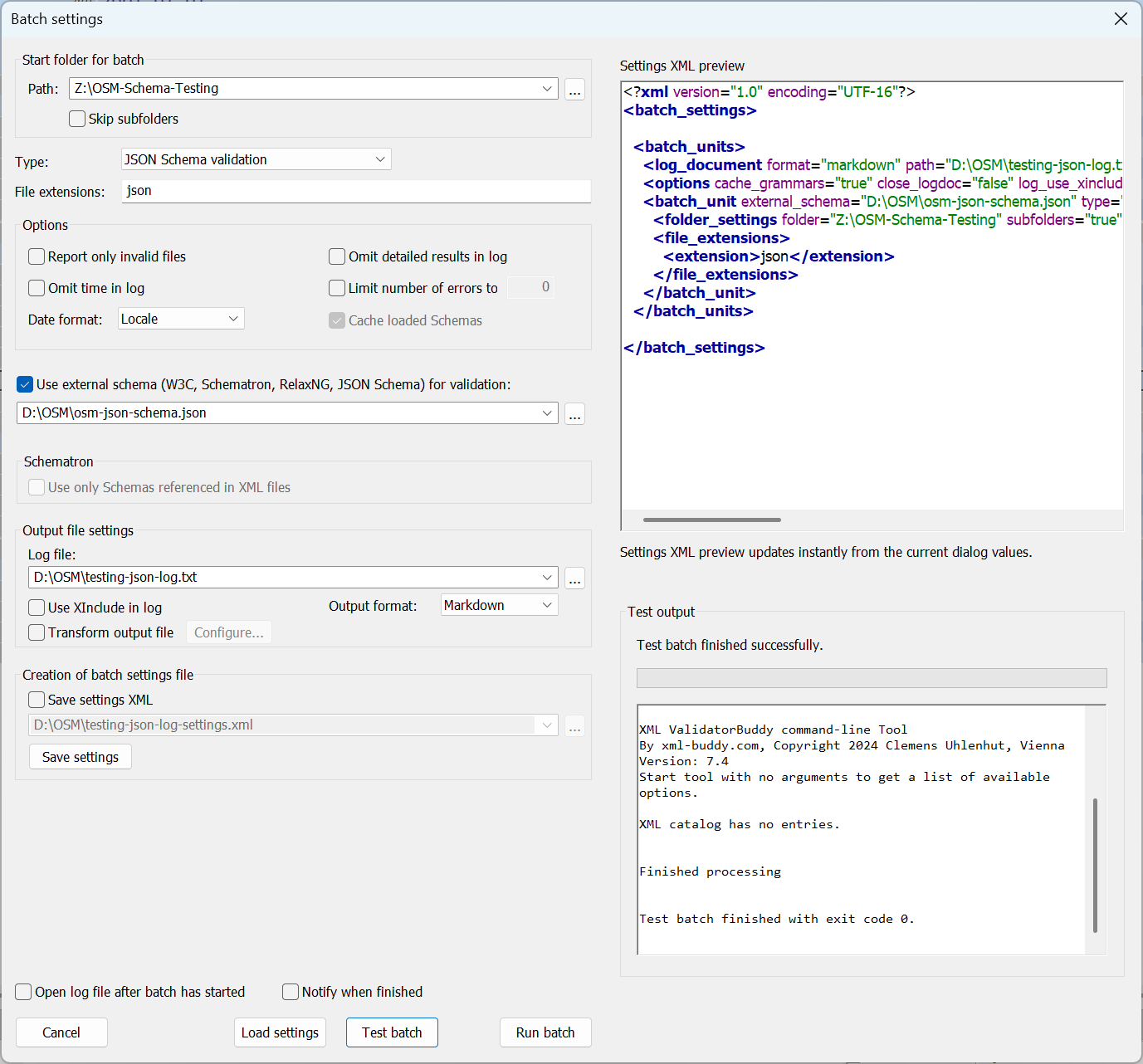
 This dialog allows you to set all available options for the batch task in a convenient way. In addition you can load already defined batch settings and save new setting files for later use. Batch validation supports several parsers and types of validation like MSXML, Xerces, Schematron or RelaxNG. Using the Xerces SAX parser is recommended especially for large XML documents.
The "Test batch" button runs the batch as it is defined but without executing the validation. During the test the log file is created and saved. The log file written during the test run gives an overview which and how many files will be processed during the real batch.
This dialog can also be used to run the batch immediately. Push the "Run batch" button to immediately start the batch task. XML ValidatorBuddy will execute the batch as an own process in the background and you can continue working on other things in the meantime. The log file will grow constantly during the batch run. b) Creating the settings XML manually
Open your XML editor or any other text editor which can save the file in Unicode UTF-8 or UTF-16. Even Notepad can do this. Type the following XML to create the simplest settings file for the batch:
<?xml version="1.0" encoding="UTF-8"?>
<batch_settings> <batch_units> <log_document path="C:\xml_log.xml"/> <options/> <batch_unit type="validation" validator="XercesC"> <folder_settings folder="C:\xml" subfolders="true"/> <file_extensions> <extension>xml</extension> </file_extensions> </batch_unit> </batch_units>
</batch_settings> This settings XML only specifies the necessary parameters:
This dialog allows you to set all available options for the batch task in a convenient way. In addition you can load already defined batch settings and save new setting files for later use. Batch validation supports several parsers and types of validation like MSXML, Xerces, Schematron or RelaxNG. Using the Xerces SAX parser is recommended especially for large XML documents.
The "Test batch" button runs the batch as it is defined but without executing the validation. During the test the log file is created and saved. The log file written during the test run gives an overview which and how many files will be processed during the real batch.
This dialog can also be used to run the batch immediately. Push the "Run batch" button to immediately start the batch task. XML ValidatorBuddy will execute the batch as an own process in the background and you can continue working on other things in the meantime. The log file will grow constantly during the batch run. b) Creating the settings XML manually
Open your XML editor or any other text editor which can save the file in Unicode UTF-8 or UTF-16. Even Notepad can do this. Type the following XML to create the simplest settings file for the batch:
<?xml version="1.0" encoding="UTF-8"?>
<batch_settings> <batch_units> <log_document path="C:\xml_log.xml"/> <options/> <batch_unit type="validation" validator="XercesC"> <folder_settings folder="C:\xml" subfolders="true"/> <file_extensions> <extension>xml</extension> </file_extensions> </batch_unit> </batch_units>
</batch_settings> This settings XML only specifies the necessary parameters: - Start the batch at folder "C:\xml"
- Include all subfolders in the batch
- Validate all files with extension .xml
- Save the log file to "C:\xml_log.xml
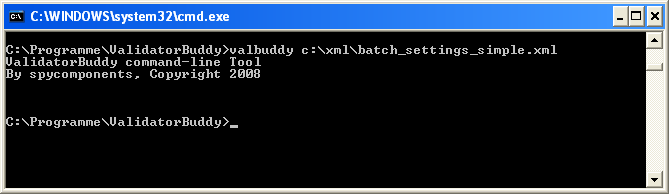 Of course the batch can take a while depending on how many files with .xml extension are located at C:\xml in this case. If there is only a small number of files to be validated XML ValidatorBuddy should finished the batch in a few seconds.
If the batch process takes several minutes or hours you can open the log file at any time to check the progress while XML ValidatorBuddy is still running. Step 3 Open the log file
The batch task creates a log file in XML format. This file can be opened directly in XML ValidatorBuddy or with any other text or XML editor. The path to the log file and its name are set in the batch settings dialog and also written to the settings XML file of the batch task.
Of course the batch can take a while depending on how many files with .xml extension are located at C:\xml in this case. If there is only a small number of files to be validated XML ValidatorBuddy should finished the batch in a few seconds.
If the batch process takes several minutes or hours you can open the log file at any time to check the progress while XML ValidatorBuddy is still running. Step 3 Open the log file
The batch task creates a log file in XML format. This file can be opened directly in XML ValidatorBuddy or with any other text or XML editor. The path to the log file and its name are set in the batch settings dialog and also written to the settings XML file of the batch task.